From a Teams call to a diarized transcript in one drag-and-drop 🎙️
I record a lot of calls. Not because I like listening to myself, but because I never take good notes while talking. The recording always ended up in the same place: I would open the Mistral console, upload the file, wait, copy the text somewhere. It works, but it is four manual steps for something that should be zero. And the output was a wall of text with no idea of who said what.
So I spent an afternoon with Claude Code fixing the whole chain, from the audio routing on the Mac to a little viewer where I can rename the speakers. Here’s how it went.
Step 1: recording both sides of the call
The first problem is not even about AI. When you record with QuickTime while wearing a USB headset, you only get your own voice. The other participants come out of the headset and never reach any input device.
The classic fix on macOS is BlackHole, a virtual audio driver that acts as a loopback. In Audio MIDI Setup, you create two devices:
- A Multi-Output Device that duplicates everything the Mac plays into both the headset and BlackHole.
- An Aggregate Device that combines the headset microphone and BlackHole into one input.
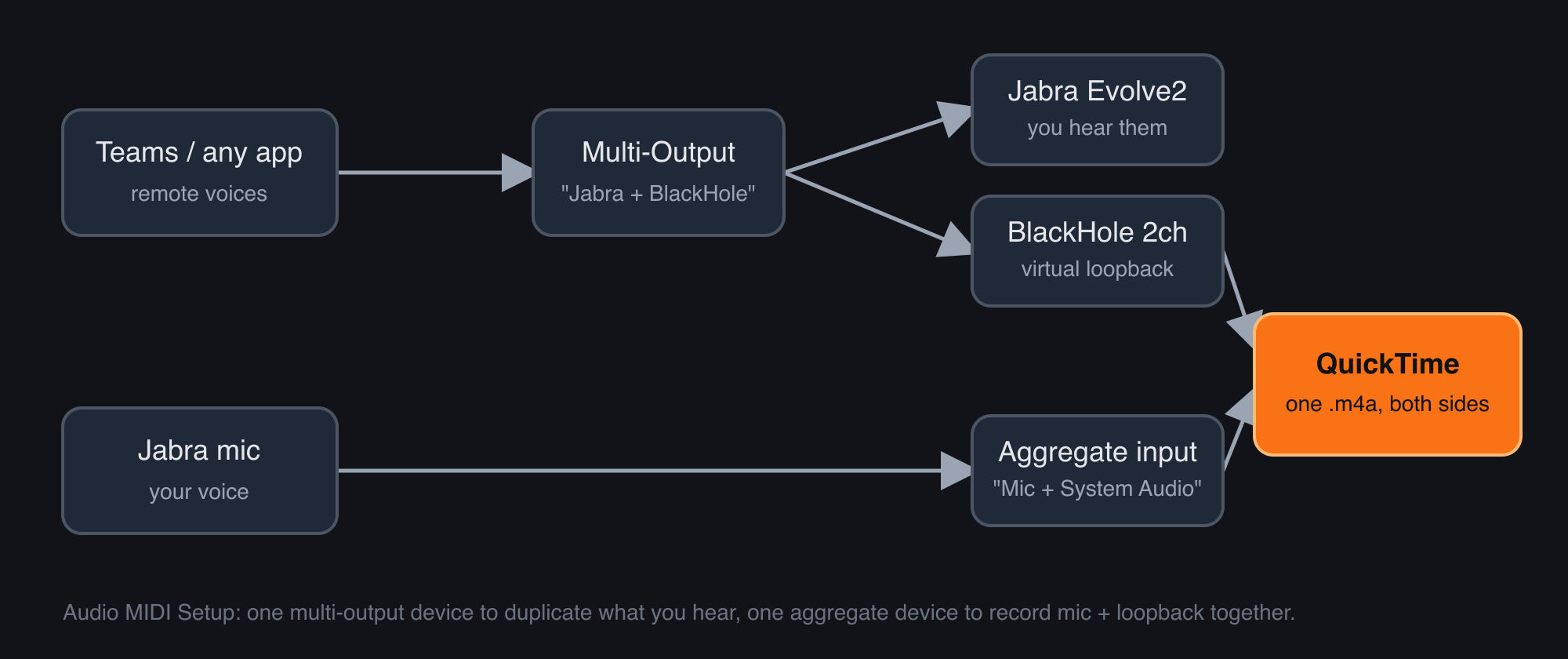
Then it’s only a matter of picking the right device in three places:
| Where | Setting |
|---|---|
| macOS sound output | Multi-Output (“Jabra + BlackHole”) |
| Teams speaker | Same multi-output, or “system settings” |
| QuickTime microphone | Aggregate (“Mic + System Audio”) |
One gotcha: enable drift correction on BlackHole inside the aggregate device, otherwise long recordings slowly go out of sync. The other one: the volume slider of the Mac is disabled with a multi-output device, so the volume has to be set on the headset itself.
I keep all of this in an Apple Note because I forget it every single time.
Step 2: calling Voxtral instead of the console
Mistral’s speech-to-text model is called Voxtral. The console is just a front-end to the /v1/audio/transcriptions endpoint, which accepts a multipart upload. The whole “app” is therefore a curl:
curl -sS https://api.mistral.ai/v1/audio/transcriptions \
  -H "x-api-key: $KEY" \
  -F "file=@$f" \
  -F "model=voxtral-mini-latest" \
  -F "language=fr" \
  -F "diarize=true" \
  -F "timestamp_granularities=segment"
The two interesting flags are diarize=true and the segment granularity. With them, the response is no longer a flat text but a list of segments, each with a start time, an end time, and a speaker_id:
{
  "type": "transcription_segment",
  "text": "J'imagine, je ne sais pas où tu vas le rajouter...",
  "start": 0.5,
  "end": 6.9,
  "speaker_id": "speaker_1"
}
On a real 8 minutes call, Voxtral returned 211 segments spread over 3 speakers. The third one only had 2 segments, which is the usual false positive you get from an interruption or a cough. Not a big deal, as we’ll see.
Where does the API key live?
I did not want the key in a dotfile or in the script. macOS has a perfectly good secret store, the Keychain, and it is scriptable:
# once
security add-generic-password -a "$USER" -s mistral-api -w 'YOUR_KEY'

# in the script
KEY=$(security find-generic-password -s mistral-api -w)
If the key is missing, the script pops an alert and falls back to opening the console in the browser, so the old workflow is still one drag away.
Step 3: the droplet
I wanted to drag a file onto an icon and be done. AppleScript has had this for twenty years, it’s called a droplet: an app whose on open handler receives the dropped files.
on open theFiles
    set paths to ""
    repeat with f in theFiles
        set paths to paths & " " & quoted form of POSIX path of f
    end repeat
    do shell script "/Users/me/bin/transcribe-mistral.sh" & paths
end open
Compiled with osacompile -o "Transcribe with Mistral.app" droplet.applescript, it sits on the Desktop. Drop one or ten .m4a files on it and a transcript appears next to each one. No Automator, no Shortcuts, no Electron.
Step 4: a viewer where I can rename the speakers
The diarization gives me speaker_1, speaker_2, but it obviously does not know their names. I needed a way to say “speaker_1 is Pierre” once and have it applied everywhere. And to figure out who speaker_1 is, I needed to hear them.
The shell script pipes the JSON into a small Python script that writes a self-contained HTML file next to the audio. No framework, no build, about 60 lines including the CSS.
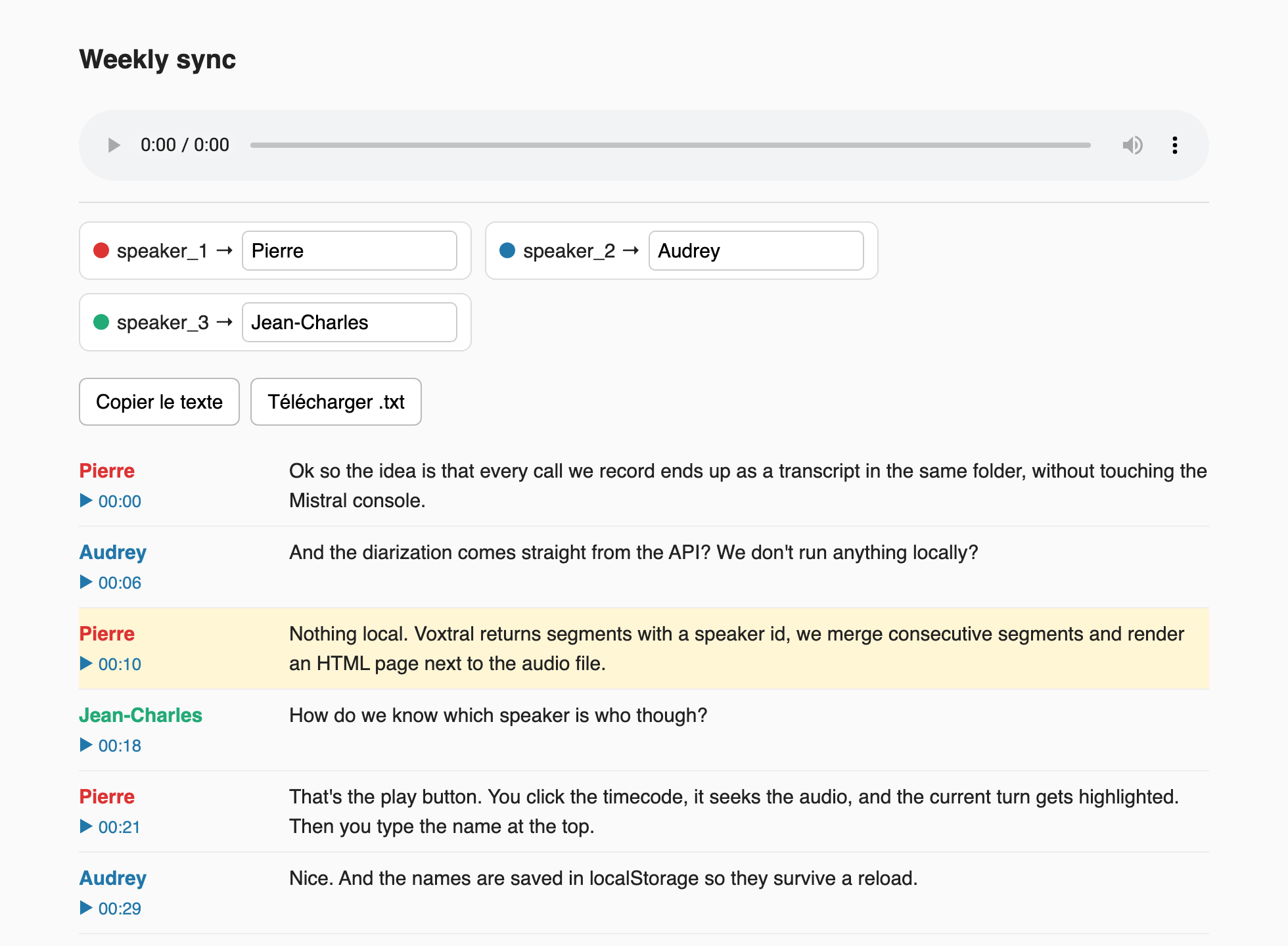
A few details I liked:
- Merging turns. Voxtral returns short segments. Consecutive segments from the same speaker are merged into one turn, so the page reads like a dialogue instead of subtitles.
- Play from a timecode. The page embeds an
<audio>element pointing to the recording in the same folder. Every turn has a ▶ button that doesaudio.currentTime = start; audio.play(). While playing, the current turn is highlighted with atimeupdatelistener. This is what makes identifying the speakers a ten seconds job. - Names survive a reload. They are stored in
localStorage, keyed by the file path. The false-positivespeaker_3from earlier simply gets the same name as the real speaker. - Export. Two buttons copy the renamed transcript to the clipboard or download it as a
.txt, one line per turn with the timestamp.
Alongside the HTML, the script also writes a .md version with a speaker_1 = header to fill in, for the days I’d rather edit in a text editor, and keeps the raw .json in case I want to re-render later.
The whole pipeline
recording.m4a  ──drop──▶  droplet.app
                              │
                              ▼
                     transcribe-mistral.sh    (curl + Keychain)
                              │
                              ▼
                        recording.json
                              │
                              ▼
                     transcript-render.py
                         │          │
                         ▼          ▼
                 recording.html  recording.md
Three files, none of them longer than a screen. The part that took the longest was not the code, it was remembering which audio device goes where.
What I’d change
Voxtral’s diarization is good enough for a two or three people call, but it does not know how many speakers to expect. The API has no num_speakers hint yet, so the occasional ghost speaker will stay. And the HTML viewer expects the audio to stay next to it: move one without the other and the play buttons go silent. Both are fine for my use, which is: record, drop, rename, paste into my notes.
Pierre.